
Introduction
If you are planning a career in software development, DevOps, Cloud Computing, Site Reliability Engineering, or Platform Engineering, learning Git and GitHub is no longer optional. Every modern development team uses version control systems to track changes, collaborate efficiently, and manage codebases. Among all version control systems available today, Git dominates the industry, while GitHub has become the most popular platform for hosting and collaborating on Git repositories.
This Git and GitHub Tutorial will help beginners understand Git and GitHub from scratch. By the end of this Git and GitHub Tutorial, you will know how to create repositories, manage branches, merge code, resolve conflicts, collaborate with teams, and use GitHub professionally.
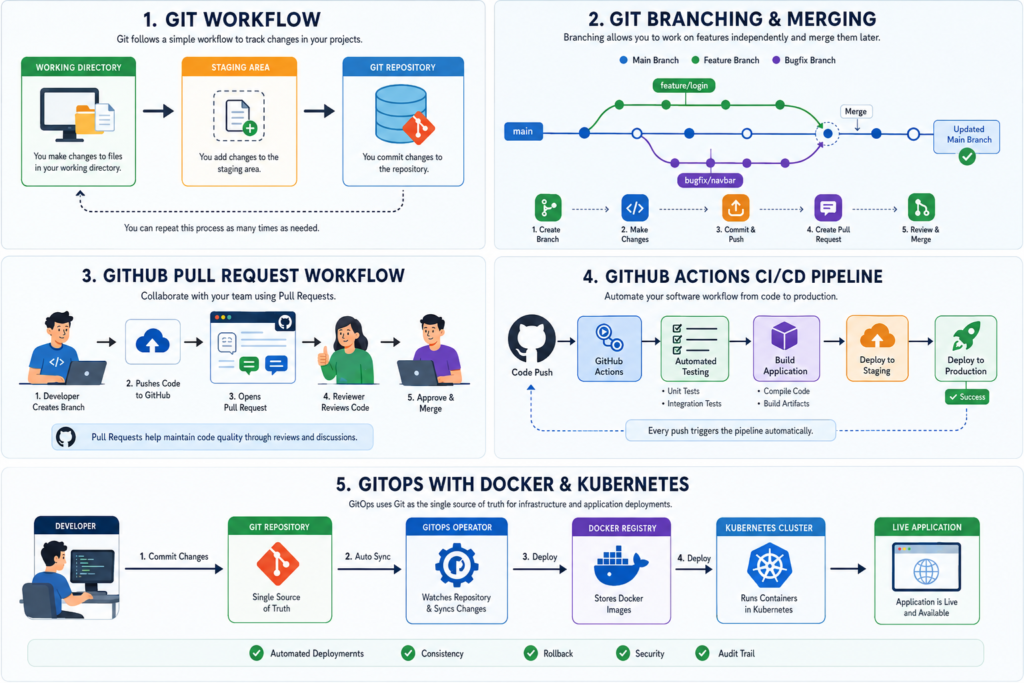
Table of Contents
What is Git?
Git is a distributed version control system developed by Linus Torvalds in 2005.
Git helps developers:
- Track code changes
- Maintain version history
- Collaborate with teams
- Roll back mistakes
- Create branches for new features
- Merge code safely
Think of Git as a time machine for your code. Every change is recorded, making it easy to revisit previous versions whenever needed.
Why Git is Important
Without Git:
- Files get overwritten
- Team collaboration becomes difficult
- Code recovery is nearly impossible
- Deployment processes become risky
With Git:
- Every change is tracked
- Teams work independently
- Mistakes can be reverted
- Releases become predictable
This is one reason why every Git and GitHub Tutorial begins with understanding Git fundamentals.
What is GitHub?
GitHub is a cloud-based platform that hosts Git repositories.
Git manages code locally, while GitHub stores repositories online and enables collaboration.
GitHub allows developers to:
- Store repositories online
- Collaborate with teams
- Review code
- Create pull requests
- Track issues
- Automate workflows
- Integrate CI/CD pipelines
Git vs GitHub
| Git | GitHub |
|---|---|
| Version Control System | Repository Hosting Platform |
| Works locally | Works online |
| Tracks changes | Stores repositories |
| Command Line Tool | Web Platform |
| Developed by Linus Torvalds | Owned by GitHub |
Many beginners confuse Git and GitHub. Remember:
Git is the engine. GitHub is the garage.
Installing Git
Windows Installation
- Visit: Git
- Download Git for Windows
- Run installer
- Keep default settings
- Finish installation
Verify Installation
git --version
Expected output:
git version 2.x.x
Initial Git Configuration
Configure your identity before starting.
git config --global user.name "Your Name"
git config --global user.email "your@email.com"
Verify configuration:
git config --list
Creating Your First Repository
Create a project folder.
mkdir my-project
cd my-project
Initialize Git:
git init
Output:
Initialized empty Git repository
Git now starts tracking changes in your project.
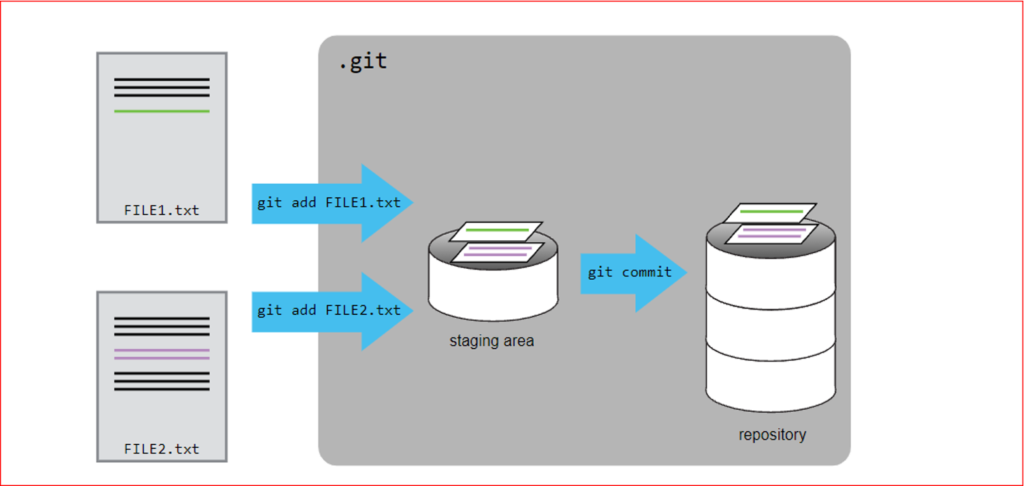
Understanding Git Workflow
The Git workflow contains three important areas:
Working Directory
Where you create and modify files.
Staging Area
Temporary holding area before committing.
Repository
Permanent storage of committed changes.
Workflow:
Working Directory → Staging Area → Repository
This workflow is the foundation of every Git and GitHub Tutorial.
Creating Your First Commit
Create a file:
touch index.html
Check status:
git status
Add file:
git add index.html
Commit file:
git commit -m "Initial commit"
Check history:
git log
Frequently Used Git Commands
Check Repository Status
git status
Add All Files
git add .
Commit Changes
git commit -m "Added login page"
View History
git log
View Short History
git log --oneline
Remove File
git rm filename
Rename File
git mv oldfile newfile
Understanding Branches
A branch is an independent line of development.
Imagine your production application is running successfully.
You want to add a new feature without affecting production.
Create a separate branch.
Create Branch
git branch feature-login
Switch Branch
git checkout feature-login
Create and Switch
git checkout -b feature-login
List Branches
git branch
Why Branching Matters
Branching enables:
- Feature development
- Bug fixes
- Experimentation
- Parallel teamwork
Without branches, software development would become chaotic, which is surprisingly how many teams attempt to operate before discovering version control. Humans have an endless talent for creating problems that tools solved years ago.
Merging Branches
After completing development:
Switch to main branch:
git checkout main
Merge feature branch:
git merge feature-login
Git combines changes automatically whenever possible.
Understanding Merge Conflicts
Conflicts happen when two developers modify the same lines.
Git cannot determine which version should be kept.
Developers must manually resolve conflicts.
Typical workflow:
- Open conflicting file
- Remove conflict markers
- Save file
- Add file
git add .
- Commit
git commit -m "Resolved merge conflict"
Connecting Git with GitHub
Create a repository on GitHub.
Add remote repository:
git remote add origin https://github.com/username/repository.git
Verify:
git remote -v
Push code:
git push -u origin main
FAQ
Is Git free to use?
Yes, Git is completely open source and free.
Is GitHub free?
GitHub offers both free and paid plans.
Can I use Git without GitHub?
Yes. Git works independently on your local machine.
Which is better GitLab or GitHub?
Both are excellent. GitHub is more widely used by the developer community.
Do DevOps engineers need Git?
Absolutely. Git is one of the most important skills for DevOps engineers.
How long does it take to learn Git?
Most beginners can learn the fundamentals within a few days of practice.
Is Git difficult?
No. Basic commands are easy to learn, though advanced workflows take time.
Conclusion
This Git and GitHub Tutorial covered the fundamental concepts every developer should know. From repository creation and commits to branching, merging, and GitHub collaboration, these skills form the foundation of modern software development.
Whether you want to become a Full Stack Developer, Cloud Engineer, DevOps Engineer, or Software Engineer, mastering Git and GitHub will significantly improve your productivity and collaboration skills.
The best way to learn Git is through practice. Create repositories, experiment with branches, break things, fix them, and push code regularly. Software engineering is largely the art of making mistakes in a controlled environment before users discover them in production.
Advanced Git and GitHub Tutorial: Remote Repositories, Pull Requests, Forking and Collaboration
Working with Remote Repositories
A remote repository is a version of your project stored on the internet or a network.
Most teams use GitHub as their remote repository platform because it provides collaboration features, pull requests, issue tracking, automation, and repository management.
View Existing Remotes
git remote -v
Example Output:
origin https://github.com/username/project.git
Add a Remote Repository
git remote add origin https://github.com/username/project.git
Change Remote URL
git remote set-url origin https://github.com/username/new-repository.git
Remove Remote Repository
git remote remove origin
Understanding remotes is essential because most professional software teams collaborate through remote repositories.
Git Push Command
The push command uploads local commits to GitHub.
Push Code
git push origin main
Push New Branch
git push origin feature-login
Push All Branches
git push --all
Without pushing changes, your code remains only on your local machine.
Many beginners mistakenly think committing automatically uploads code to GitHub.
Remember:
Commit = Local
Push = Remote
Git Pull Command
The pull command downloads the latest changes from GitHub.
Pull Latest Changes
git pull origin main
This command performs:
- Fetch
- Merge
Combined into one operation.
Git Fetch Command
Fetch downloads changes without merging them.
git fetch
Benefits:
- Safe review of incoming changes
- Better visibility
- Reduced merge surprises
Many experienced developers prefer fetch before merge.
Git Clone Command
Clone copies an existing repository to your local system.
Clone Repository
git clone https://github.com/username/project.git
After cloning:
cd project
You now have the complete repository history.
This is one of the most commonly used commands in every Git and GitHub Tutorial.
Understanding Forking
Forking creates your own copy of another repository.
Common in:
- Open-source projects
- Community contributions
- Public collaboration
Workflow:
- Fork repository
- Clone fork
- Create branch
- Make changes
- Push changes
- Create pull request
Forking allows developers to contribute without direct access to the original repository.
What is a Pull Request?
A Pull Request (PR) is a request to merge code from one branch into another.
Example:
feature-login → main
Pull requests allow:
- Code reviews
- Team discussions
- Automated testing
- Approval workflows
Before merging code, teammates can review changes and suggest improvements.
This helps maintain code quality and prevents bugs from reaching production.
Pull Request Workflow
Step 1
Create feature branch:
git checkout -b feature-authentication
Step 2
Make changes.
Step 3
Commit changes.
git add .
git commit -m "Added authentication module"
Step 4
Push branch.
git push origin feature-authentication
Step 5
Create Pull Request in GitHub.
Step 6
Review code.
Step 7
Merge Pull Request.
Why Code Reviews Matter
Code reviews help:
- Detect bugs
- Improve security
- Maintain standards
- Share knowledge
- Reduce technical debt
A second pair of eyes often catches mistakes.
Sometimes a third pair is required because software engineers possess a remarkable ability to stare directly at a bug for six hours without recognizing it.
Understanding Git Ignore
Not every file should be stored in Git.
Examples:
- Password files
- Logs
- Temporary files
- Build artifacts
- Dependencies
Use a .gitignore file.
Example:
node_modules/
.env
logs/
*.log
dist/
build/
Git ignores these files during commits.
Why .gitignore is Important
Without .gitignore:
- Repositories become huge
- Sensitive data may leak
- Deployment becomes difficult
- Collaboration slows down
Every professional project should include a properly configured .gitignore.
GitHub Repository Structure
A professional repository typically contains:
project/
│
├── src/
├── docs/
├── tests/
├── .gitignore
├── README.md
├── package.json
└── LICENSE
Organized repositories are easier to maintain and understand.
Creating a Professional README
README files explain:
- Project purpose
- Features
- Installation
- Usage
- Contributing guidelines
Example structure:
# Project Name

## Features

## Installation

## Usage

## Technologies Used

## Contributing

## License
A strong README improves developer experience and project adoption.
GitHub Issues
GitHub Issues help track:
- Bugs
- Enhancements
- Tasks
- Improvements
Teams use Issues for project planning and workflow management.
Benefits:
- Transparency
- Accountability
- Better prioritization
GitHub Projects
GitHub Projects provide Kanban-style boards.
Example workflow:
To Do → In Progress → Testing → Done
This allows teams to organize work efficiently.
GitHub Actions Overview
GitHub Actions is GitHub’s automation platform.
Use cases:
- CI/CD
- Testing
- Deployments
- Security scanning
- Build automation
GitHub Actions has become extremely popular among DevOps teams.
Example GitHub Actions Workflow
Create:
.github/workflows/main.yml
Example:
name: Build

on:
  push:
    branches:
      - main

jobs:
  build:
    runs-on: ubuntu-latest

    steps:
      - uses: actions/checkout@v4

      - name: Install Dependencies
        run: npm install

      - name: Run Tests
        run: npm test
Whenever code is pushed, GitHub automatically executes the workflow.
Git Stash
Sometimes you need to switch branches without committing unfinished work.
Use stash.
Save Changes
git stash
View Stashes
git stash list
Restore Stash
git stash pop
Git temporarily stores changes for later use.
Git Tags
Tags mark important versions.
Examples:
- v1.0
- v2.0
- v3.0
Create tag:
git tag v1.0
Push tag:
git push origin v1.0
Tags help track software releases.
Git Revert
Undo a commit safely.
git revert commit-id
Git creates a new commit reversing previous changes.
Recommended for shared repositories.
Git Reset
Reset changes locally.
Soft Reset:
git reset --soft HEAD~1
Hard Reset:
git reset --hard HEAD~1
Be careful.
Hard reset permanently removes changes.
Many developers discover backups are important immediately after deleting something valuable.
Unfortunately, that lesson often arrives a few seconds too late.
Best Git Practices
Commit Frequently
Small commits are easier to understand.
Write Meaningful Messages
Bad:
git commit -m "fix"
Good:
git commit -m "Fixed authentication token validation"
Use Feature Branches
Avoid direct development on main branch.
Review Code
Always perform code reviews.
Protect Main Branch
Require pull requests before merging.
Keep Repository Clean
Remove unused files and branches regularly.
Common Git Mistakes
Committing Secrets
Never commit:
- API Keys
- Passwords
- Tokens
Working on Main Branch
Use dedicated feature branches.
Large Commits
Large commits make debugging difficult.
Ignoring Documentation
Documentation improves maintainability.
Skipping Pull Before Push
Always pull latest changes before pushing.
Git Workflow Used in Companies
A typical enterprise workflow:
- Pull latest code
- Create feature branch
- Develop feature
- Commit changes
- Push branch
- Create pull request
- Review code
- Run tests
- Merge code
- Deploy application
This workflow powers thousands of software organizations worldwide.
Git and GitHub Tutorial: Enterprise Workflows, DevOps Integration, Security, Interview Questions and Best Practices
Understanding Git Flow Strategy
As projects grow, managing branches becomes more complex. To solve this problem, many organizations use Git Flow.
Git Flow introduces structured branches:
main
develop
feature/*
release/*
hotfix/*
Main Branch
Contains production-ready code.
Develop Branch
Contains the latest development changes.
Feature Branches
Used for building new functionality.
Example:
feature/user-authentication
feature/payment-gateway
feature/dashboard
Release Branches
Prepared before production deployment.
Example:
release/v2.0
Hotfix Branches
Used for urgent production fixes.
Example:
hotfix/login-bug
Git Flow is widely used in enterprise environments where multiple teams work simultaneously.
GitHub Flow Strategy
GitHub Flow is simpler than Git Flow.
Workflow:
- Create branch
- Make changes
- Commit code
- Push branch
- Open Pull Request
- Review code
- Merge branch
- Deploy application
GitHub Flow works particularly well for:
- SaaS products
- Agile teams
- Continuous deployment environments
Many startups prefer GitHub Flow because it reduces complexity.
Git in DevOps
Modern DevOps practices heavily depend on Git.
Git acts as the single source of truth for:
- Application code
- Infrastructure code
- Configuration files
- Deployment manifests
- Automation scripts
A typical DevOps workflow looks like:
Developer
   ↓
Git Repository
   ↓
CI Pipeline
   ↓
Testing
   ↓
Build
   ↓
Deployment
   ↓
Production
Without Git, DevOps pipelines become difficult to manage and automate.
[INTERNAL LINK PLACEHOLDER: Complete DevOps Roadmap]
Git with Docker
Docker projects are commonly stored in Git repositories.
Example Docker project:
project/
│
├── Dockerfile
├── docker-compose.yml
├── src/
├── package.json
└── README.md
Developers can track:
- Dockerfiles
- Compose files
- Build configurations
- Container scripts
Example commit:
git add .
git commit -m "Added Docker configuration"
This ensures container configurations remain version controlled.
[INTERNAL LINK PLACEHOLDER: Docker Tutorial for Beginners]
Git with Kubernetes
Kubernetes deployments are also managed using Git.
Typical repository structure:
kubernetes/
│
├── deployment.yaml
├── service.yaml
├── ingress.yaml
├── configmap.yaml
└── secrets.yaml
Benefits:
- Infrastructure tracking
- Rollback capability
- Audit history
- Automated deployment
This approach forms the foundation of GitOps.
What is GitOps?
GitOps is an operational framework where Git repositories become the source of truth for infrastructure and applications.
Instead of manually changing environments, engineers modify Git repositories.
The deployment system automatically synchronizes infrastructure.
Benefits include:
- Consistency
- Automation
- Security
- Easy rollback
- Complete audit trail
GitOps has become extremely popular among cloud-native organizations.
Git Security Best Practices
Security mistakes in Git repositories can be costly.
Follow these practices carefully.
Never Store Secrets
Avoid committing:
API Keys
Passwords
Database Credentials
Access Tokens
Instead use:
- Environment Variables
- Secret Managers
- Vault Solutions
Use .gitignore
Exclude sensitive files:
.env
*.pem
*.key
secrets.json
Enable Branch Protection
Protect important branches from accidental changes.
Recommended for:
main
master
production
release
Require Pull Requests
Never allow direct pushes to production branches.
Enable Multi-Factor Authentication
Protect GitHub accounts with MFA.
Human beings are astonishingly creative when inventing ways to compromise security. Most attacks are not sophisticated. Someone simply leaves credentials where they should not be.
Git Repository Organization Best Practices
Use Clear Naming Conventions
Good:
feature/login-page
feature/payment-api
bugfix/cart-error
hotfix/security-patch
Bad:
test
new
final
latest
Future developers should understand branch purpose immediately.
Keep Commit Messages Meaningful
Bad example:
git commit -m "updated"
Good example:
git commit -m "Implemented JWT authentication middleware"
Commit messages should explain the change clearly.
Create Small Commits
Smaller commits provide:
- Better tracking
- Easier debugging
- Cleaner reviews
- Faster rollbacks
Avoid committing hundreds of unrelated changes together.
Real-World Git Workflow Example
Imagine a company building an e-commerce platform.
Step 1
Developer pulls latest code.
git pull origin main
Step 2
Creates feature branch.
git checkout -b feature-payment-gateway
Step 3
Develops feature.
Step 4
Commits changes.
git add .
git commit -m "Added Razorpay payment integration"
Step 5
Pushes branch.
git push origin feature-payment-gateway
Step 6
Creates Pull Request.
Step 7
Review process begins.
Step 8
Tests execute automatically through GitHub Actions.
Step 9
Code gets merged.
Step 10
Application deploys automatically.
This process happens thousands of times every day across software companies worldwide.
Most Important Git Commands Cheat Sheet
Initialize Repository
git init
Clone Repository
git clone repository-url
Check Status
git status
Add Files
git add .
Commit Changes
git commit -m "message"
View Log
git log
Create Branch
git branch feature-name
Switch Branch
git checkout feature-name
Merge Branch
git merge feature-name
Push Changes
git push origin main
Pull Changes
git pull origin main
Fetch Changes
git fetch
Stash Changes
git stash
Restore Stash
git stash pop
Git and GitHub Interview Questions
What is Git?
Git is a distributed version control system used to track source code changes.
What is GitHub?
GitHub is a cloud platform used for hosting Git repositories.
Difference Between Git and GitHub?
Git manages version history.
GitHub hosts repositories and provides collaboration tools.
What is a Commit?
A commit is a snapshot of changes in a repository.
What is Branching?
Branching creates an independent line of development.
What is Merging?
Merging combines changes from one branch into another.
What is a Pull Request?
A Pull Request requests code review before merging changes.
What is Git Fetch?
Fetch downloads updates without merging them.
What is Git Pull?
Pull downloads and merges updates automatically.
What is Git Stash?
Git Stash temporarily stores uncommitted changes.
What is Git Rebase?
Rebase moves commits onto another base commit to create cleaner history.
What is GitOps?
GitOps uses Git repositories as the source of truth for infrastructure management.
These questions are frequently asked during software engineering and DevOps interviews.
Advanced FAQ
Is Git still relevant in 2026?
Absolutely. Git remains the industry standard for version control.
Is Git mandatory for developers?
Practically yes. Most software companies require Git knowledge.
Can Git work without GitHub?
Yes. Git operates independently.
Which is better GitHub or GitLab?
Both are excellent. Choice depends on organizational requirements.
How much Git should a beginner learn?
Focus first on:
- Clone
- Add
- Commit
- Push
- Pull
- Branch
- Merge
Advanced concepts can be learned gradually.
Can DevOps engineers work without Git?
No. Git is a foundational DevOps skill.
Is Git difficult to learn?
Basic operations are straightforward. Advanced workflows require practice.
How often should commits be created?
Commit frequently whenever a meaningful change is completed.
Final Conclusion
This complete Git and GitHub Tutorial covered everything from basic concepts to enterprise-level workflows. You learned repository creation, commits, branching, merging, remote repositories, pull requests, GitHub collaboration, GitHub Actions, GitOps, Docker integration, Kubernetes integration, security practices, and real-world development workflows.
Git has become the backbone of modern software development. Whether you want to become a Full Stack Developer, Backend Engineer, Frontend Developer, Cloud Engineer, DevOps Engineer, Platform Engineer, or Site Reliability Engineer, Git is a skill you will use almost every day.
The most effective way to master Git is through consistent practice. Create repositories, experiment with branches, resolve merge conflicts, contribute to open-source projects, and build real applications. Reading a Git and GitHub Tutorial is valuable, but hands-on experience is what transforms knowledge into professional expertise.
The software industry changes rapidly, yet Git remains one of the few technologies that every engineer continues to rely on. Learn it thoroughly, use it daily, and it will become one of the most valuable tools in your development career.